New Category: Did You Know?

question markI get asked a lot for tips and tricks and how-to information, so I thought I would add a category where I could post small bits of information that wouldn’t normally be substantial or long enough for a traditional blog entry.

So, to start:

Did you know that your Kindle reads every book and document you put on it? It does this so that it can index every word and make them searchable. It does this even if you add the books yourself (a process called sideloading). The indexing process can take a while, especially if you add a large number of books. It really drains the battery, making it very important to keep your e-reader plugged in when you have just added new books. So don’t fill your e-reader right before a cruise or a long flight – otherwise, your battery may let you down. 😦

Dresden Files e-book on sale

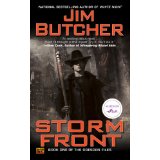
dresdenIf you are a fan of urban fantasy, you might be interested in Amazon’s Deal of the Day today. Amazon is offering the first seven of Jim Butcher’s Dresden Files series for just $1.99 each. This is a great price; the books normally run much higher. The books are also on sale today at Barnes and Noble for the NOOK and at the Kobo store.

This is a delightful series if you enjoy the genre. Harry Dresden is Chicago’s only professional Wizard. I first watched TV series,  which led me to the books. Now, I always visualize Paul Blackthorne as Harry.  Personally, I find them especially delightful as I live in Northwest Indiana and am quite familiar with Chicago and the surrounding area. One of the books actually had a scene set in the city where I live!  🙂

Happy Mother’s Day to my Kindle

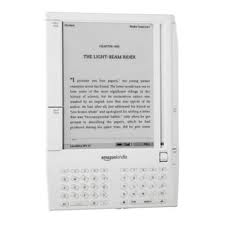
Kindle 1Okay, who is this crazy lady and why is she wishing her Kindle a happy Mother’s Day?

Well, the truth is that for me, the Kindle and Mother’s Day are linked together in my mind. I received my first Kindle, what’s now called the Kindle 1, for Mother’s Day 2008. That makes six years of the magic of reading e-books for me. I still have my original Kindle – and it still works! Since then, I have owned most of the e-ink Kindle models and several Kindle Fires (with a couple of NOOKs thrown in, to boot). At this point, I could not imagine not having an e-reader to read on.

Since I am waxing nostalgic about my Kindles today, I was thrilled to see this article on The Goodereader on The History of the Kindle in Pictures. Take a look; it is a fascinating look at the changes in model styles over the past six years.

Print versus e-book: a look at the numbers

e-book infographicThere is a really interesting infographic on E-Books in America on dailyinfographic.com.  It gives a useful overview on formats and profiles of those who like to read e-books.

However, the part that I found fascinating was the part at the bottom on which format, print or e-book, is best. It shows the percentages where one format is preferred over another and for which activities. E-books win hands down for traveling and getting a book quickly. Print books dominate for reading with a child and on lending to others.  I was most surprised by the fact that reading in bed was pretty much a tie between the two formats. 🙂

I think the infographic confirms a lot of things those of us who read e-books already know: They make it easy to buy books and easy to carry them around with us. I also think that it is interesting to note that little sharing is done on e-readers – only 25% – mostly because publishers don’t allow us to do it! That number is actually higher than I would have imagined it to be.

Anything in the numbers that surprises you?


Kindles on sale for $49

Basic KindleFor a limited time, Amazon has the basic Wi-fi Kindle with Special Offers  on sale for just $49. The Wi-fi Kindle Paperwhite with Special Offers  is on sale for $99. That’s a savings of $20 off the regular price.The Paperwhite without Special Offers is also on sale.

I own both of these and think that they are great devices. The ads are fairly unobtrusive (I actually like them better than the regular screensavers!). The Paperwhite has become the Kindle I use the most and with the built-in light for reading in bed (especially without disturbing your partner), it can’t be beat.

This is a great entry level price if you are thinking of trying the Kindle or if you want to take advantage of the many free books that are offered exclusively for the Kindle.

Is a phone an e-reading device?

There was a post on Digital Book World today that caught my attention. The headline read: “Apple Pumps Another 60 Million E-Reading Devices Into Market.”

Whoa. Sixty million. Pretty impressive. The problem is, Apple doesn’t actually make a dedicated e-reading device. And, sure enough, buried in the middle of the short piece are the words:

… publishers should be more interested in the 16 million iPads and nearly 44 million iPhones the company sold last quarter. Each one is a potential ebook reading device.

Yes, note those words. “A potential ebook reading device.” While you can arguably read on a tablet sized device, thinking of a cell phone as an reader is a totally different story.

Personally, as someone who defines an e-book reading device as a device designed or purchased primarily for reading e-books, I find the article’s title rather misleading. Few of us actually purchase our phones for reading. I will certainly argue that there is a huge difference between reading on your phone while standing in line at the grocery store and using your phone for your primary e-reader, particularly if you are a heavy reader of e-books. And I say this as someone who owns a large-screen Galaxy Note II that has almost every e-reading app you can think of installed on her phone! While you certainly can read on your cell phone, using it as your primary e-reader for any length of time is a less than satisfying experience.

I would be interested in seeing current statistics on this as the reading landscape is changing.

So, how about you? Do you use your phone as a primary e-reader?


What model Kindle do I have?

kindlefireRight when they first came out, I bought one of the original 7″ Kindle Fire Tablets. I use it for games, movies, listening to music and looking up facts on IMDB. While I don’t normally like reading on it (I prefer e-ink), I do find that the full color is great for reading cookbooks.

At Christmas, I received one of the 8.9 Kindle HD Fires as a gift and  now use that one for most of my movies, music and games. But I have reached the point where I own enough Kindle cookbooks  that I am actually considering dedicating my original Kindle Fire for use solely as a cookbook. I actually have so many cookbooks purchased across two Amazon accounts, I am also considering buying another 7″ Kindle Fire to use as a second cookbook for the other account.

Since my intended use for the device is so specific, I don’t necessarily need the latest model, at least not for a cookbook. So, I am trying to decide whether to buy a new one, a certified refurb or a used one. And,  as I am starting to research these options, I realized that trying to compare apples to apples is a little more complicated than I originally thought it would be.

The first difficultly is that people frequently use names for the  Kindles that are not the official Amazon device names.  For a long time, Amazon just called the latest edition of the device just the Kindle (no numbers), as if the earlier versions didn’t exist. Just look at the e-ink line: What many people call the Kindle 3, for example, is now officially called the Kindle Keyboard. And the $69 Kindle is alternately called by most people either the Kindle Basic or the Kindle 4 or Kindle 5 (there are two versions, based on a difference in color).

The model names on the Kindle Fires are especially confusing. Let’s look at just the one I am looking for:  the 7″ tablet. There’s the original Kindle fire,  the new Kindle Fire (which was called the Kindle Fire 2) in either 8GB or 16GB, the Kindle Fire Hd (16GB), the Kindle Fire Hd (32GB), and the 2013 Kindle Fire HD 16GB. There are also four separate versions of the Kindle Fire 8.9! The newer versions of the Kindle HD tablets are now called the HDX. And some devices are WI-FI only and others have cellular.

If you are looking at buying used on ebay, you will see that everybody uses different terms.  Some use terms like “latest generation,” some have model numbers “D01400,” or “3HT7G.”  Some just list 7″ wi-fi, 8GB.” One just said “Dual -core. ” Others list confusing terms like  “Gen 2” and “2011.”

It became really apparent to me that some people might not know exactly what model Kindle they have.

Obviously, I want to know what model I am buying. But even if you are not in the market for a used Kindle, it can be very helpful to know what model Kindle you own. It makes a big difference with support questions; each of the different models works in different ways and has specific features. And if you want to buy a case or accessories, you HAVE to know what model you have; the cases are not interchangeable.

So, how do you find the model for your Kindle? Amazon does have a help page for identifying your Kindle model and that’s a good place to start.

If you are still not sure which one you have, you may need the model number. To find it, from your computer, log in to your Amazon account and under account, choose Manage Your Kindle. On the left sidebar, go down to Your Kindle Account and click on Manage Your Devices.  You will then see all your Kindles and apps listed. The first four characters are your model number.

If you have the original box, the Amazon model number is printed on the box. You can also access the model number from the settings page of the device.

Once you have the model number, you can find out which Kindle or Fire version you have. MobileRead has a chart where you can look up the number and it will tell you which model you have. This chart does not seem to indicate the HDX models.

If  the model number doesn’t help, you may be able to determine which model you have by looking at the feature list. This is particularly helpful on the Kindle Fire HD models, where the 2012 version has a micro HDMI port and the 2013 version doesn’t .  And, if you have the Mayday feature on your Kindle Fire, you have the HDX!

If you still can’t find the model, you can search or post in one of the following message boards:

And if all else fails, you can call Kindle Support at Amazon. (Make sure you call the special support line for the Kindle. The regular Amazon customer service representatives are not trained for technical Kindle questions.)

Managing Your Free Kindle Books, Part Two: Choosing Wisely and Pre-Organizing

This is the second in a three-part series. Part One is here. Most of the information in this series of posts is specific to the Kindle line of e-readers  and the Amazon bookstore.

In Part One, we looked at an overview of some of the problems that can be caused by having too many books on your Kindle or Kindle Fire. The same is true of the Kindle for PC app for your computer or mobile device. While this is just as true for paid books as it is for free ones, the nature of free tends to tempt us to overload our Kindles.

It is also interesting to note that even if a Kindle is not actually malfunctioning due to too many books (freezing, inability to download or highlight,etc.), many people find that as they get more and more books on their Kindles, the device runs much more slowly (slower page turns, slower search, etc.).

So how do we deal with this? The answer is not to avoid free books! There are some great bargains in the free offerings and I have discovered some tremendously gifted authors through their free books, authors such as Hugh Howey, Keith C. Blackmore,and many others.

What we can do is choose more wisely what books to put on our Kindle.  Why is this important? Because the best way to organize is not to put books (paid or free) on the Kindle in the first place that you are ultimately not going to read.  Think of it as pre-organizing and a way cut down on the Kindle clutter.

Keep lists of the books you want to read:  This is as simple and as old-fashioned as it gets. Write down the name of the title and the author. You can make this as low tech (pen and paper) or as high-tech (MS Word, Evernote or even Notepad for the Kindle) as you are comfortable with. Personally, I use Evernote and have a TBR note where I jot down the title and author, a link to a buy page or the review that first caught my eye. That way, I don’t forget about the book, but don’t have to download the sample to remember it. I can then check the book out at my leisure.

Recommendations:  Nowadays, the free books offered on any given day normally number in the hundreds. There are a lot of websites that list free books (EreaderIQ, Kindle Nation Daily, Books on the Knob, Pixel of Ink and many, many others). An internet search for free Kindle books will bring up pages of blogs and curated lists that can help you find books that interest you. Most of these sites give you the ability to search for books in certain categories and genres. Amazon lists the top 100 sellers, both free and paid.

Don’t have time to search through hundreds of free books to find what you like? There are also a lot of places you can get recommendations for free books without having  to sort through the listings. Most genre groups on social networking sites like GoodReads and Shelfari have a place on the message boards that is dedicated to free books of that particular genre.  And if you are looking for a particular author, check their blog, website or Twitter account: Most authors who offer their books for free on the Kindle let their fans know.

Read the reviews:  This is especially important for people who like to find books, then wait to find them free. Good, honest reviews can help you make a decision about whether to download a book or not. Yet, given some of the recent controversies over fake and purchased reviews, it can be difficult to know whether to trust them or not. If you are unsure, click on the reviewer’s name and check out the other ones that they have written.  Look for warning signs: all reviews for the same author, all five-star reviews, or if tis is the only item the person has ever reviewed. Ultimately, remember that reviews are simply the opinion of the person writing the review.

Read the samples: Often, reading the sample of the book can give you a clearer idea about whether you will like the book or not. Do you like the writer’s style and syntax? Are there grammar and spelling errors? The sample can give you an actual feel for the book.

With free books, however, you do not have the opportunity to send a sample to your Kindle or your app.  However, you can still read the sample on your computer by clicking on the Look Inside feature. And, using the feature means that’s one less sample cluttering up your Kindle. Here what it looks like for the The Man Cave Cookbook, which is free periodically.
Click=big

Sometimes, however, samples can cause as many problems as they solve. Some people have pages and pages of samples on their Kindles. Those samples take up space and memory and must be indexed, just like books. In other words, too many samples can cause the same problems as too many actual books!

Fortunately, there are several ways to help organize your samples.  One method is to send all your samples to one place. That can be your Kindle app on your computer or phone. That way, you can read a sample when you have a spare moment to read, but not enough time to get immersed in an entire book. If you have more than one Kindle, you can designate one for all your samples.

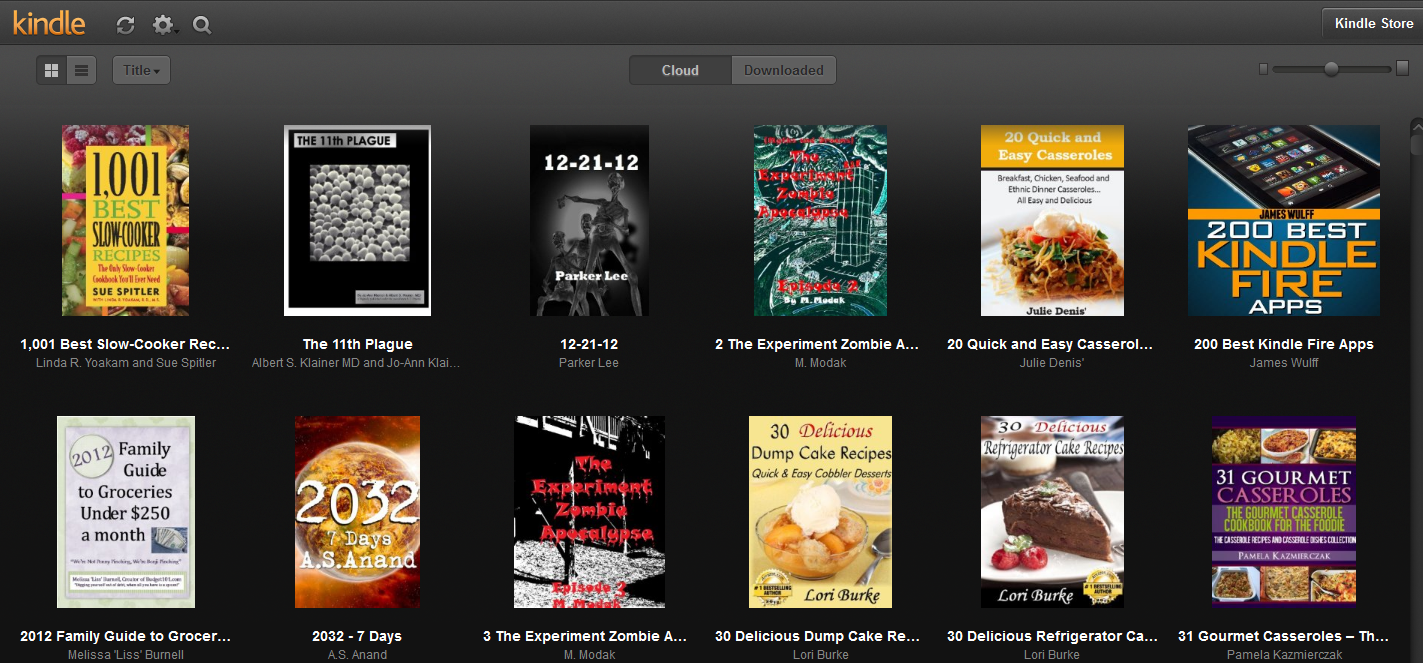
If you want to keep your Kindle totally uncluttered by samples,  you can send them to the Cloud Reader instead of your Kindle. As seen in the picture below, samples on the Cloud Reader show their covers, which can give you a visual jog to help you remember the book.

Click=big

In Part Three, we will discuss organizing your TBR pile, including more ways to organize books you haven’t even downloaded yet. Note: Due to a family emergency, part 3 was never written.
Managing your Free Kindle Books, Part One: The Problem with Free

This is the first in a three-part series. Most of the information in this series of posts is specific to the Kindle line of e-readers  and the Amazon bookstore.

A while back, I did a post on where to find free books for your Kindle. A few more are listed in this article on tips for the new Kindle Owner. When I bought my first Kindle in 2008, free books were very few and generally, offered by major publishers or their imprints. Back then, with few freebies and books going for an average of $9.99,  it made sense to grab every free book that was available. And there were some good ones: I got Tess Gerritsen’s The Surgeon (the first book in the Rizzoli and Isles series) and  Julia Spencer-Fleming’s In the Bleak Midwinter  as just a couple of my early free books.

Now, it’s a different landscape. With Amazon’s KDP Select publishing, literally hundreds of free indie books are offered daily. The number of blogs, websites and newsletters letting you know the daily free books has multiplied exponentially. Even Amazon has made it easy with a list of the top 100 bestsellers, free and paid, on their website.

So now, the TBR pile (your stash of To-Be-Read books) has become a problem of its own.

This is where the difference between digital and physical books becomes quite clear. For a print book reader, the TBR pile was self-limiting. As some point you literally run out of room, your books fall off the nightstand, or the bookshelf simply will not hold anymore.

For book lovers, digital books didn’t have that problem. No cluttered piles of books. Promises of storage for 2000 to 3000 books on your Kindle.  And, with e-readers that had expandable storage options like the first generation Kindle, you could just keep adding more and more books.

Or so it seemed. Try finding a particular book when you can’t exactly remember the name of the title. What happens when you can’t even see all your books in your archives? What happens when your battery won’t last through a book because it is constantly indexing? What if your Kindle starts to malfunction because it is too full? (And yes, that actually happens!)

So now, it seems, the problem has reversed itself: Instead of asking where do I find free books, people are asking where do I find good free books and, more importantly, how do I organize them all? Who would have ever thought that managing free books for the Kindle could actually be considered a problem?

Are you tired of sorting through lists to find free books that are actually worth your time? Maybe you are one of those people who like an uncluttered Kindle home page. Maybe you have so many books on your Kindle that you can’t find or organize them all. Maybe you are tired of books that are badly written, unedited or badly formatted.  Or, perhaps, your Kindle is actually starting to slow down or malfunction because of the sheer volume of books you own.

Over the next few blog entries, we will try to address solutions to some of those problems.

Next time in Part Two: Choosing more wisely and finding sites that will help you do just that.

And in Part Three: Organizing your Digital TBR Pile. Note: Due to a family emergency, part 3 was never written.

Video Review of the new Paperwhite Kindle

Len Edgerly of the Kindle Chronicles just posted a great video review of the new Kindle Paperwhite.  I had initially decided to pass on any of the new Kindles,  but after seeing this, I am reconsidering. My husband inherited my Kindle Touch because I did not like the touch screen at all. This one seems much more responsive, but I am still not sure about no buttons (and no text-to-speech) at all. Take a look:

What do you think after seeing the Paperwhite in action?